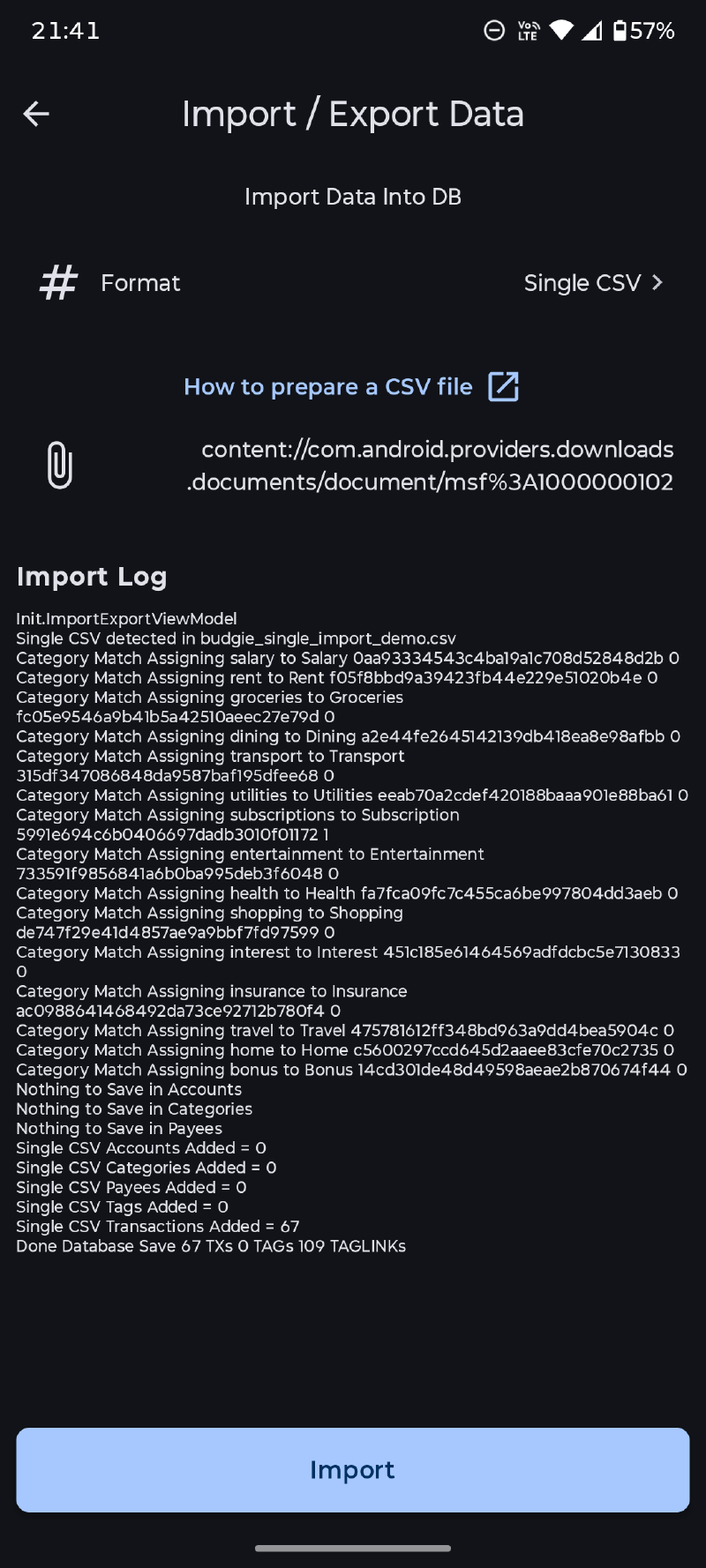
Open Database Tools in Budgie, select an import type, choose the file, and review the import log. Imports add data to the current local database; they are not a replace or restore operation. Back up your Budgie data before importing, especially before a large migration.
Budgie matches existing accounts, categories, payees, and tags where supported. Matching is case-insensitive by name. New items are created when no suitable existing item is found. A category with the same name but a different transaction type is treated as a different category.
Invalid or incomplete rows are skipped and reported in the import log. Keep the source export until you have checked the imported accounts, transactions, and balances.
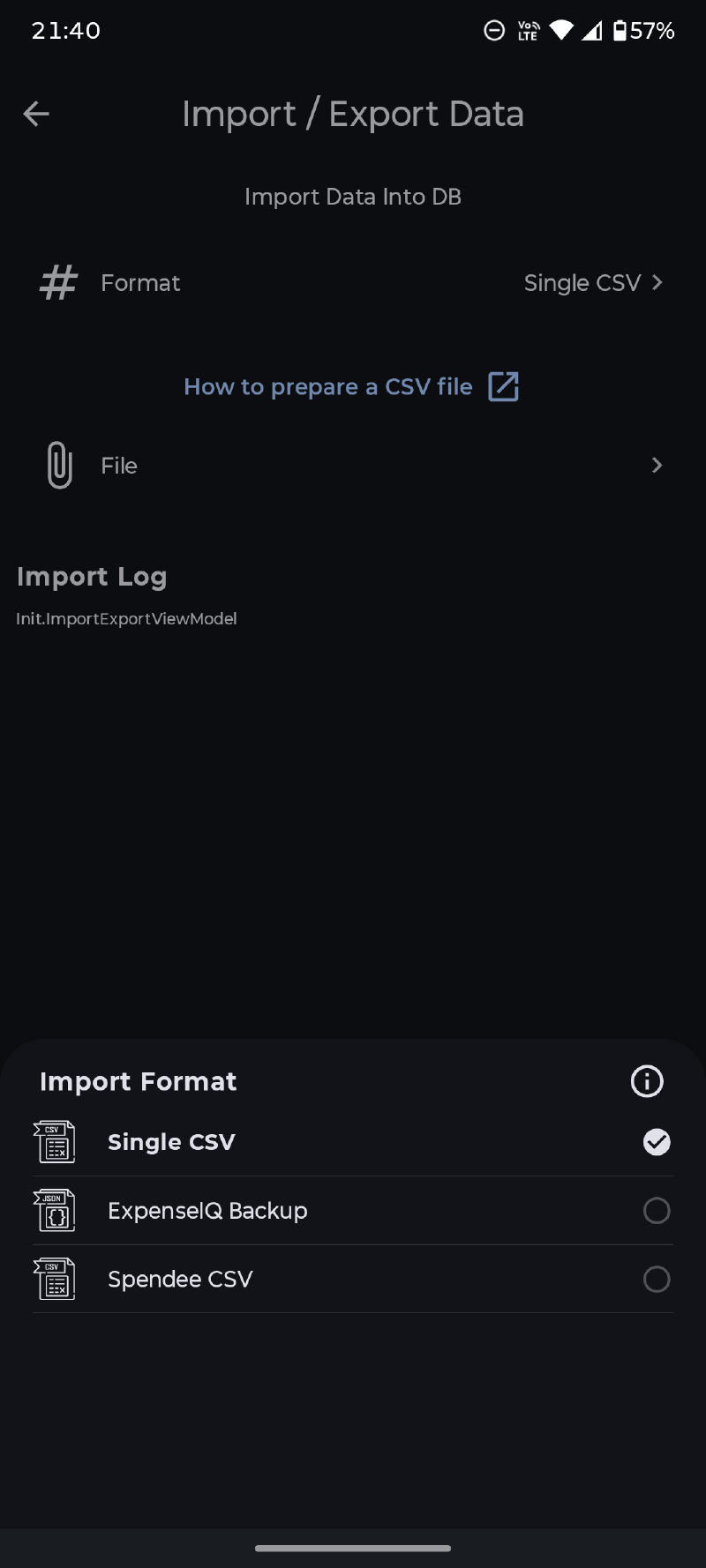
Single CSV#
The Single CSV importer is the general-purpose option for data exported from a spreadsheet, bank conversion, or another budgeting app. The file must be a comma-separated CSV with a header row. Header names are case-insensitive, but every column below is required.
Download an example to use as a starting point:
Save an edited copy as UTF-8 CSV and keep the header names unchanged.
| Column | Required content | How Budgie uses it |
|---|---|---|
ACCOUNT_FROM | Account name | Creates or matches the source account. |
DATE | Transaction date | Accepts YYYY-MM-DD, D/M/YYYY, DD/MM/YYYY, M/D/YYYY, or MM/DD/YYYY. Ambiguous numeric dates should be avoided. |
CURRENCY | ISO currency code, such as AUD | Used for newly created accounts. A blank value defaults to Budgie’s default account currency. |
AMOUNT | Non-zero number | Negative amounts import as expenses; positive amounts import as income. |
PAYEE | Optional payee name | Creates or matches a payee for ordinary income or expense transactions. |
CATEGORY | Category name | Required for ordinary income or expense transactions. |
ACCOUNT_TO | Optional destination account name | When present, the row imports as a linked transfer rather than a categorised transaction. |
TAGS | Optional tags | Separate multiple tags with commas or semicolons. |
DESCRIPTION | Optional text | Imports as the transaction note. |
For ordinary transactions, leave ACCOUNT_TO empty and provide a category. For transfers, set ACCOUNT_TO; Budgie creates both sides of the transfer and links them. The transfer amount is imported using its absolute value, so its sign does not change the direction: ACCOUNT_FROM is the source and ACCOUNT_TO is the destination.
Example:
ACCOUNT_FROM,DATE,CURRENCY,AMOUNT,PAYEE,CATEGORY,ACCOUNT_TO,TAGS,DESCRIPTION
Everyday,2026-08-01,AUD,-42.50,Fresh Market,Groceries,,food;weekly,Weekly groceries
Everyday,2026-08-02,AUD,-500.00,,,Savings,transfer,Move money to savings
Everyday,2026-08-03,AUD,2500.00,Employer,Salary,,,August salary
The second row is a transfer from Everyday to Savings; it does not need a category.
Rows are skipped when the source account is missing, the date is invalid, the amount is zero or not numeric, or an ordinary transaction has no category. For new accounts, use a consistent currency per account in the file; Budgie uses the currency from the account’s first imported occurrence.
Avoid duplicate imports#
The importer adds records to the current database and does not automatically identify a previously imported row. Before importing:
- Create a Budgie ZIP backup.
- Import a small sample first.
- Check transaction counts, balances, dates, and transfers.
- Import the complete file only after the sample behaves as expected.
If the same file is imported twice, restoring the pre-import backup is often safer than manually deleting a large number of duplicate records.
Spendee CSV#
Choose Spendee CSV for a CSV export produced by Spendee. Budgie reads Spendee’s transaction export fields including wallet, currency, type, category name, date, note, and labels.
The importer requires valid values for Amount, Wallet, Category name, and Date. It also uses these Spendee fields when present:
| Spendee field | Budgie result |
|---|---|
Wallet | Account; a new account is created if needed. |
Currency | Currency for a newly created account; blank defaults to Budgie’s default account currency. |
Type | income imports as income; other values import as expenses. |
Category name | Income or expense category. |
Date | Transaction date; Spendee’s ISO date-time value is converted to its calendar date. |
Note | Transaction note. |
Labels | Tags; separate labels with commas. |
Spendee imports currently create transactions without payees and do not reconstruct transfers from the CSV. Review wallet balances and transfer history after import if your Spendee export includes transfers or adjustments.
ExpenseIQ backup#
Choose ExpenseIQ Backup for a single encrypted ExpenseIQ backup file. Budgie decrypts the backup locally, loads the supported records into a temporary local database, then imports the mapped data. The original backup is not changed.
The importer supports:
- accounts, including name, description, currency, initial balance, icon, colour, status, visibility, and report-exclusion settings;
- categories, including the category type, description, icon, and colour;
- payees derived from transaction and reminder titles;
- transactions, including dates, amounts, notes, status, and linked transfers where both sides can be identified;
- child ExpenseIQ categories as Budgie tags on their transactions;
- budgets, mapped as monthly anchored budgets with any available account and category filters;
- recurring schedules and active one-time reminders where the necessary transaction data is available.
ExpenseIQ records marked deleted are excluded. Transactions with Template or Open status are not imported as normal transactions, because ExpenseIQ uses them for internal templates and reminder state. Circular transfer records are skipped. Where one side of a transfer cannot be linked, Budgie imports it as an unlinked transfer so that it remains visible for review.
ExpenseIQ’s original budget frequency is not available in the imported budget table. Imported budgets therefore use a monthly anchored interval beginning on the first day of the month. Review imported budgets and adjust their period, limit, filters, and currency as needed.
After an import#
- Check the import log for skipped rows and mapping warnings.
- Verify account currencies and opening balances.
- Review transfers, especially data imported from Spendee or ExpenseIQ.
- Confirm category and tag mappings, then remove or merge duplicates if required.
- Review recurring schedules and imported budgets before relying on reminders or reports.
Spendee and ExpenseIQ are names and marks of their respective owners. Budgie is not affiliated with, endorsed by, or sponsored by Spendee or ExpenseIQ.