Lab Sudoku can solve more than its built-in catalogue. Add a puzzle manually, scan one with the camera, or choose an existing image, then keep it in My Puzzles alongside your saved progress.
Enter a puzzle manually#
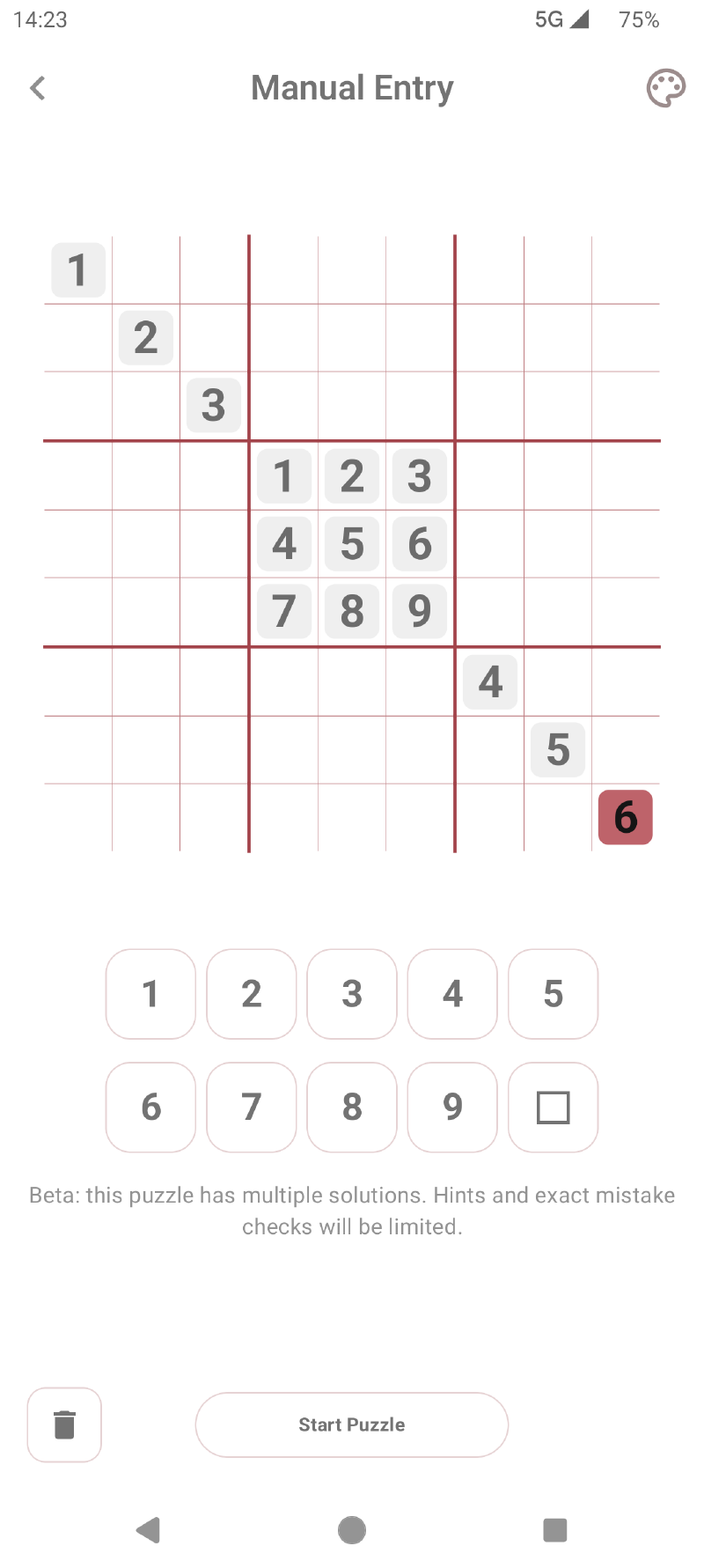
Choose Add Puzzle and Manual Entry. Enter only the printed or known starting digits—the givens—then select Start Puzzle.
Lab Sudoku checks the grid before starting:
- duplicate digits in a row, column, or box are rejected;
- a grid with no valid solution cannot be started;
- a puzzle with multiple solutions can be accepted as a beta case, but exact mistake checks and hints will be limited.
Scan with the camera#
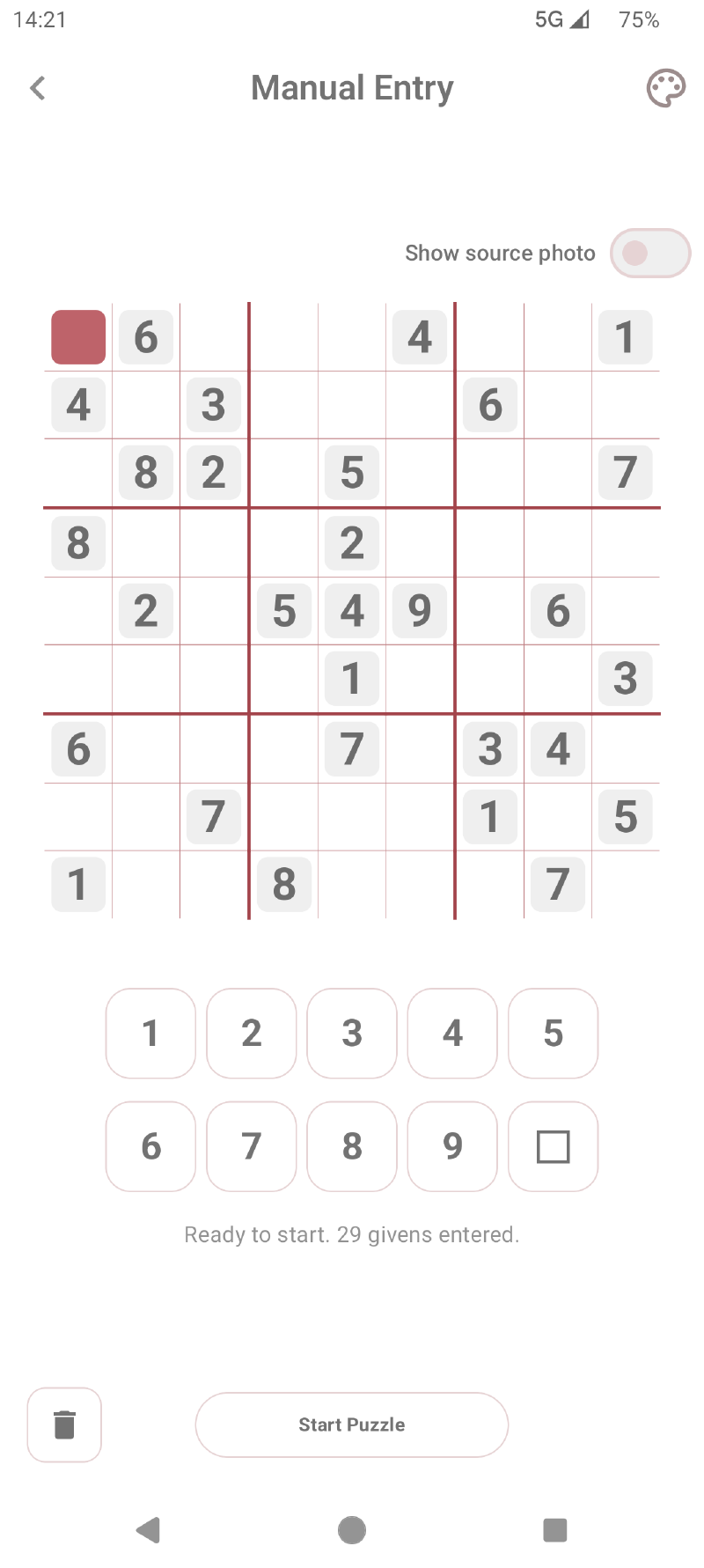
Choose Camera Import, then scan a printed puzzle or select a photo. Lab Sudoku prepares the image, detects the grid and digits with OCR, and opens the result for review.
For the best result:
- Keep the puzzle flat and well lit.
- Avoid glare, shadows, handwriting, and decorative elements over the grid.
- Fill most of the frame with the puzzle.
- If using an existing image, crop it closely around the grid.
No OCR scan is perfect. Compare every recognised given with the original and correct any missing or mistaken digits before saving.
Free accounts can save up to ten camera-imported puzzles in total. Premium unlocks unlimited saved camera imports. Manual puzzle entry remains available without Premium.
Organise My Puzzles#
Imported and manually created puzzles appear in My Puzzles. You can filter the library by unfinished, solved, or bookmarked items; continue saved progress; and distinguish manually entered puzzles from scanned ones.
Use folders and tags to organise the library, and add bookmarks to keep favourites easy to find. Free accounts can bookmark up to ten puzzles; Premium removes that limit.
Deleting saved game progress removes its current moves and checkpoints, while the underlying puzzle remains available to play again. Deleting an imported puzzle removes it from the library, so confirm that you selected the intended item.