Budgie offers several ways to describe a transaction. Giving each one a clear role keeps entry quick and makes budgets, search, and Insights more useful.
Accounts: where the money lives#
Create an account for each balance you want to track, such as everyday banking, savings, cash, or a credit account. Each account has its own currency and initial balance.
You can archive accounts you no longer use, hide them from normal views, or exclude them from the combined balance without deleting their history. Transfers should link the source and destination accounts so the movement is not counted as income or expense.
Categories: the primary purpose#
Use a category for the main purpose of ordinary income or spending—for example Groceries, Rent, or Salary. Income and expense categories are distinct, even when they have the same name.
Choose categories broad enough to remain consistent. If every merchant gets its own category, category reports become harder to scan; that detail usually belongs in the payee.
Payees: who was involved#
A payee identifies the merchant, employer, person, or organisation connected to a transaction. Reusing the same payee name gives you a reliable payee breakdown in Insights.
Payees are optional for many workflows. Budgie’s advanced mode exposes payees and transaction statuses when you want the extra detail.
Tags: flexible labels across everything#
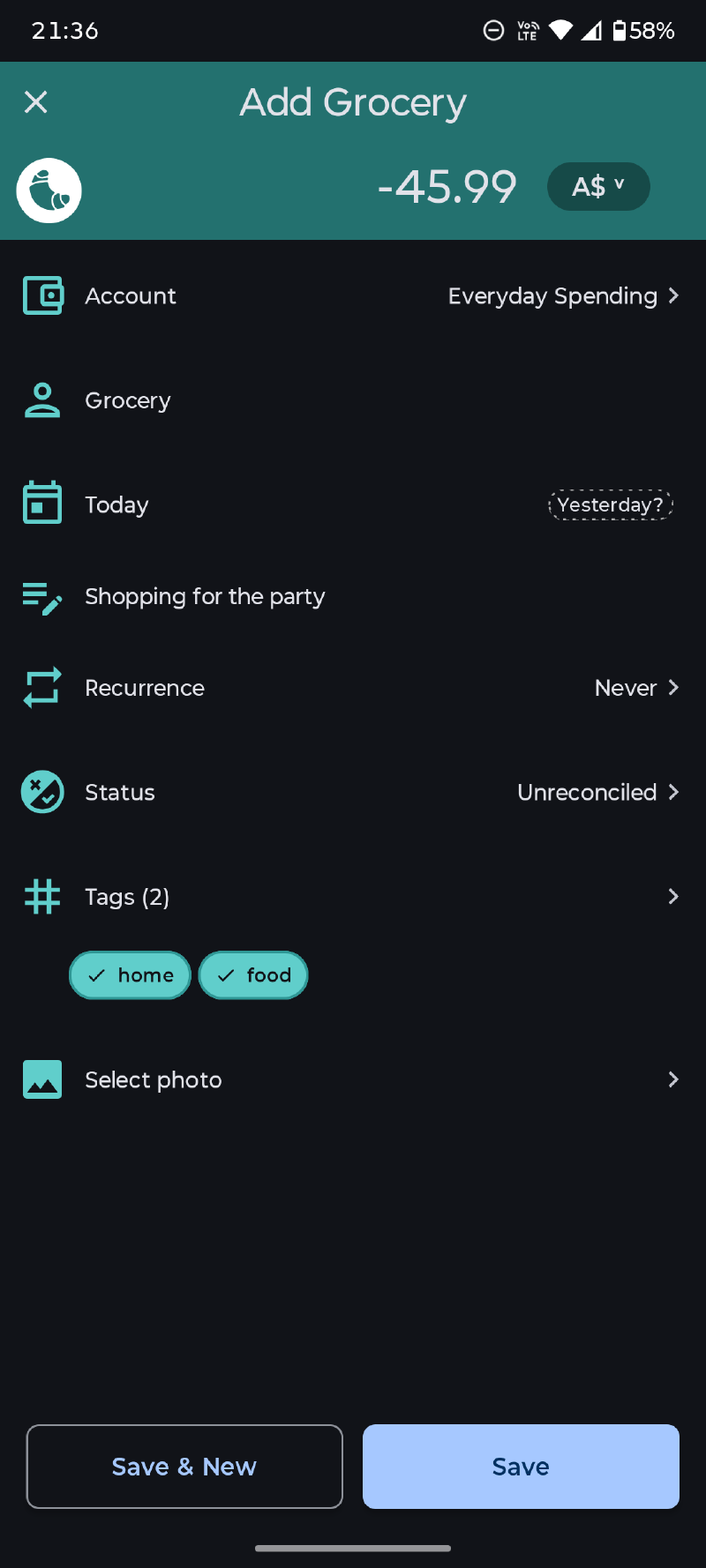
Tags are optional labels that can cut across accounts, categories, and payees. Useful examples include Holiday, Reimbursable, Tax, or a project name.
A transaction can have multiple tags, making them useful when one category is not enough. Tags can also narrow budgets and provide their own Insight breakdowns.
Transaction statuses#
Statuses can support a personal review or reconciliation workflow. If you use them, choose a small, repeatable process—for example, one status for newly entered activity and another after it has been checked. Status summaries can then appear on the dashboard and in Insights.
Clean up in batches#
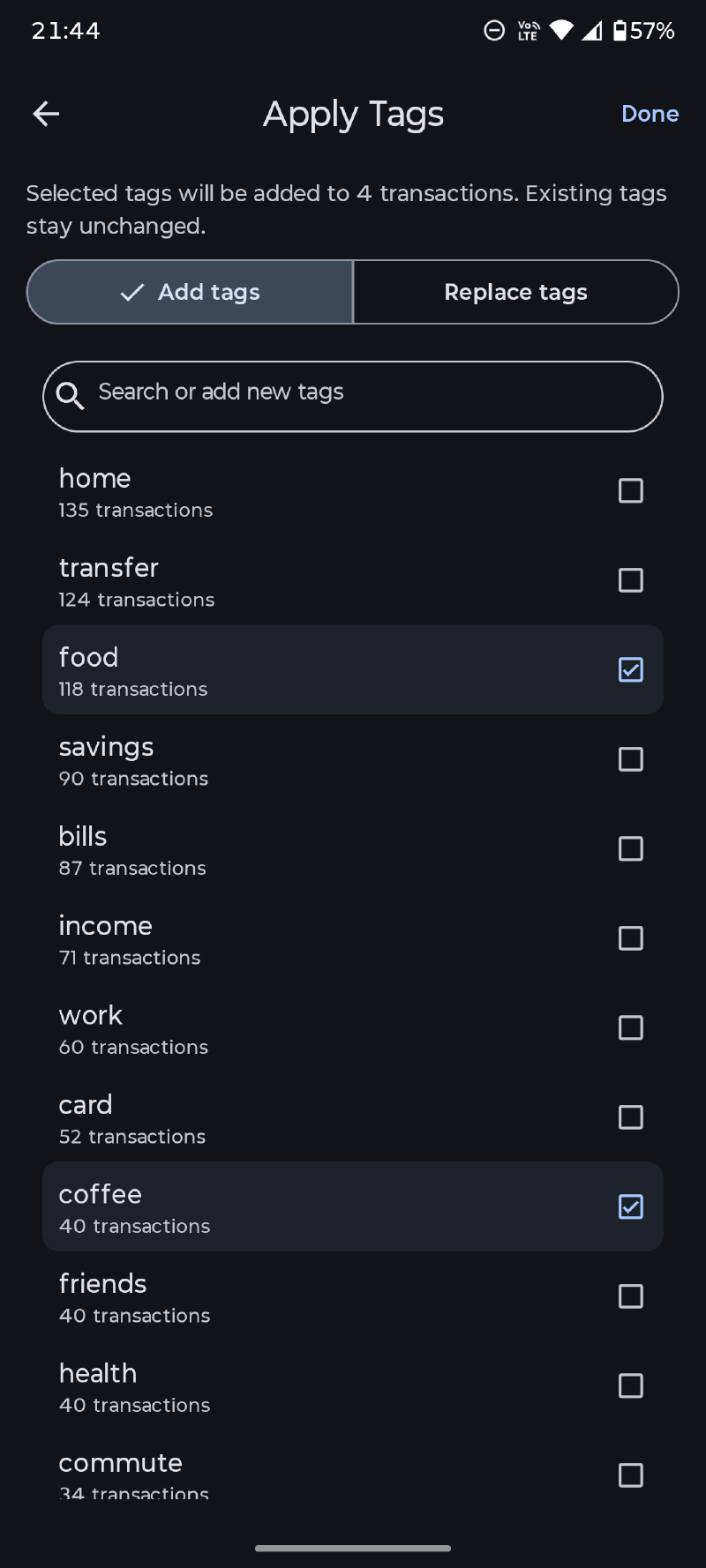
Use search and selection tools to update groups of transactions. The bulk tag editor can add, remove, or replace tags across selected records. Where Budgie offers merge or move actions, review the affected records before confirming—especially when consolidating accounts or categories.
A practical naming pattern#
For a supermarket purchase, a useful structure might be:
| Field | Example |
|---|---|
| Account | Everyday |
| Category | Groceries |
| Payee | Fresh Market |
| Tags | Household, Weekly shop |
| Note | Ingredients for family dinner |
The account answers where, the category answers why, the payee answers who, tags add reusable context, and the note holds details that do not need their own reporting dimension.