Budgie keeps your financial data in a local database and gives you a hands-on way to record accounts, transactions, budgets, schedules, and insights. It does not connect to your bank, so you remain in control of what is added.
1. Create your accounts#
Open Accounts from the menu and add each account you want to track. Give the account a name, currency, and initial balance. You can also choose its icon and colour, add a description or account number, and set a default transaction status.
Optional account settings let you archive or hide an account, exclude it from the combined balance, and enable a warning when scheduled activity would take its projected balance below a threshold.
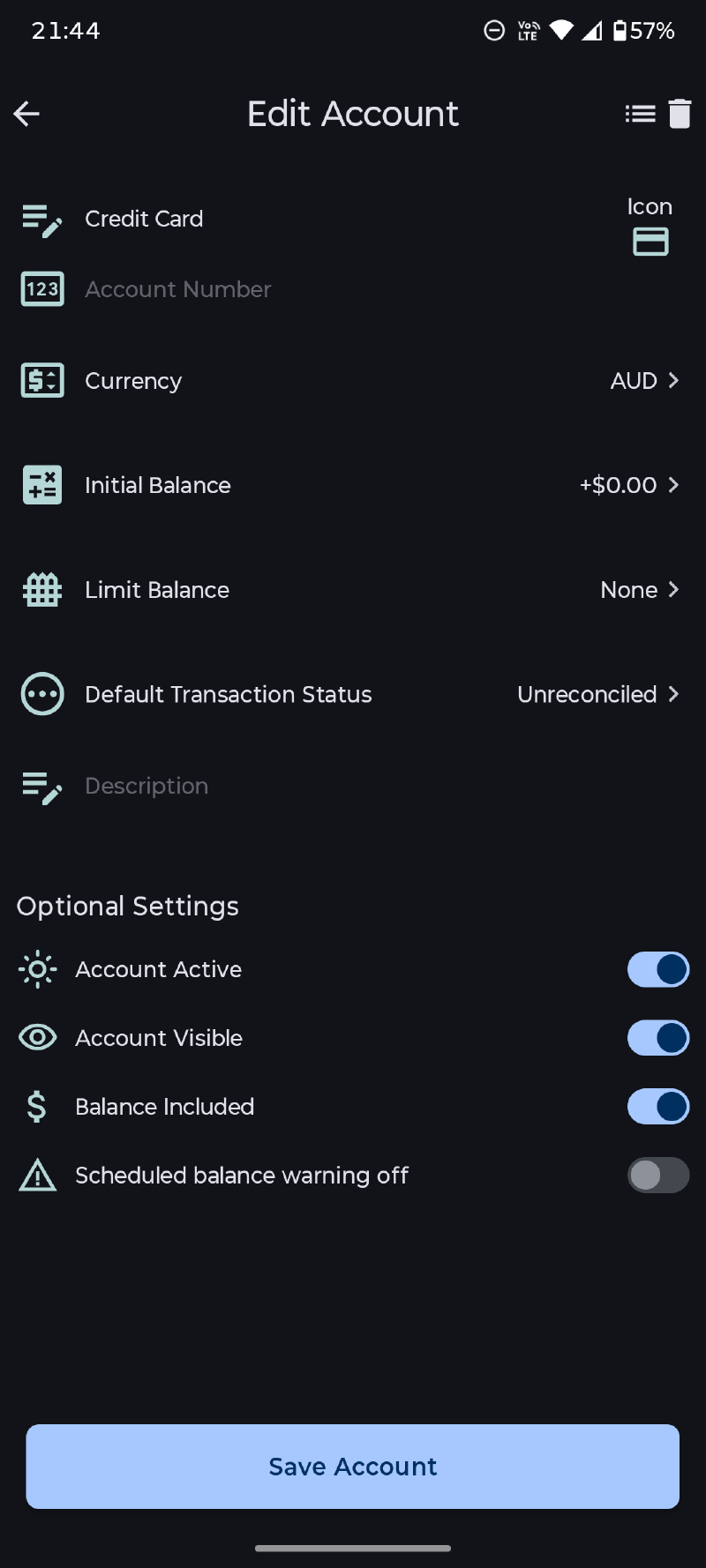
For the clearest reports, use an account’s real currency and enter its balance as of the date you begin tracking it.
2. Record everyday activity#
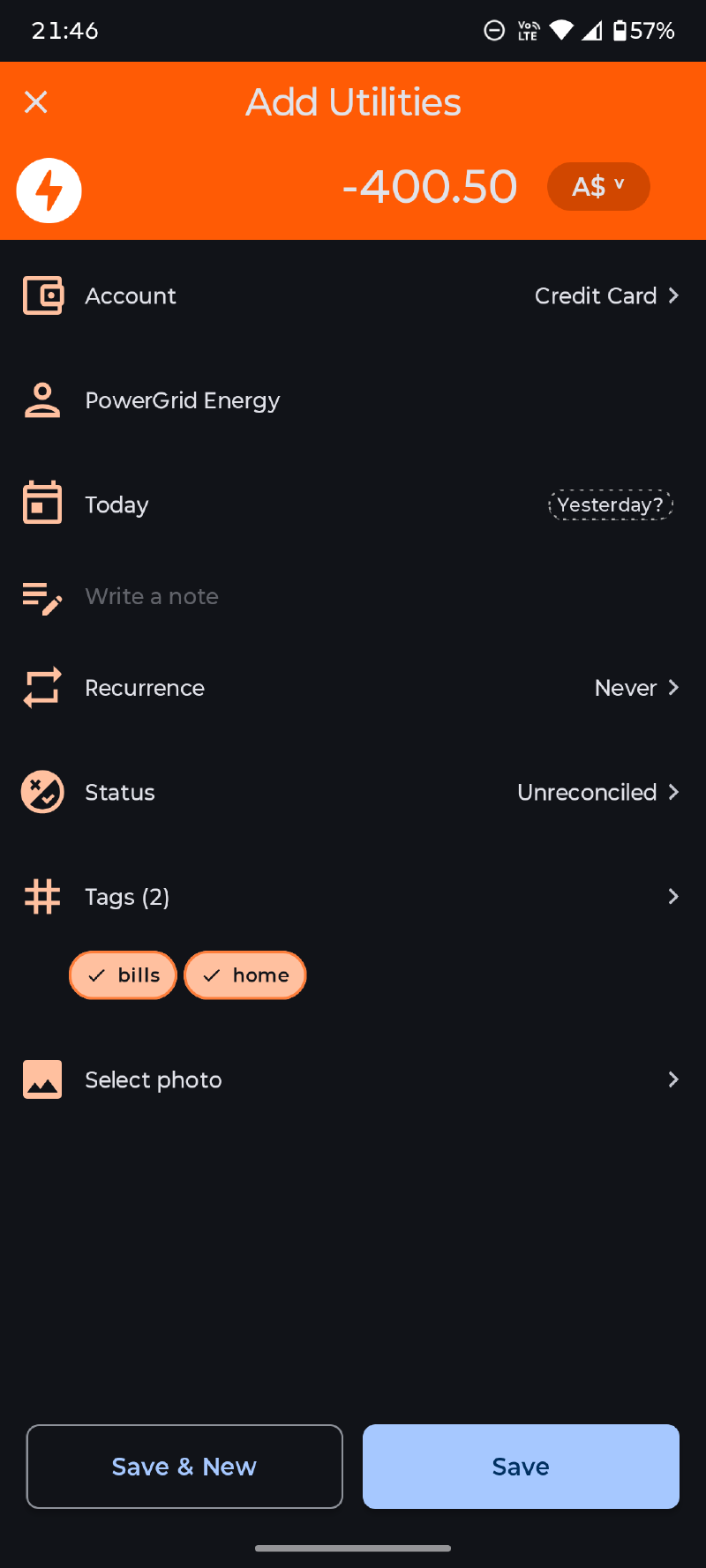
Open the Ledger and add a transaction. Choose whether it is income, an expense, or a transfer, then enter the date and amount.
- An expense moves money out of an account and uses an expense category.
- Income moves money into an account and uses an income category.
- A transfer moves money between two Budgie accounts and creates linked sides of the same movement.
You can also attach a payee, tags, a note, a status, and a photo where appropriate. Transfers should use the source account and destination account rather than an income or expense category, so they do not inflate spending or income reports.
3. Organise as you go#
Use categories for the primary purpose of a transaction, payees for who was involved, and tags for flexible labels that can cross categories and accounts. For example, a restaurant expense might use the Dining category, the restaurant as its payee, and Holiday as a tag.
See Organising Your Data for more detail.
4. Add a budget or schedule#
Once you have some transactions, create a budget for a fixed period, a moving window, or a repeating cycle. The Budgets guide explains the available budget types.
Use schedules for repeating transactions and bills. A schedule can create transactions automatically; a bill waits for you to mark it paid or skip that occurrence. See Schedules and Bills.
5. Shape your dashboard#
The dashboard can surface balances, recent cash flow, budgets, categories, payees, scheduled items, transaction status, and other summaries. Use Customize Dashboard to keep the information you use most within easy reach.
When you are ready to explore longer-term patterns, open Insights and choose a reporting period. The Understanding Insights guide explains each view.
6. Protect your data#
Set up a backup after creating your accounts. Budgie supports local and cloud-provider folders, one-off backups, automatic schedules, and restore. Read Backup, Restore, and Export before relying on a backup or moving data between devices.