Set a spending limit#
A Budgie budget sets a spending limit for a defined time window. You can narrow a budget to selected accounts, categories, and tags. When more than one filter is selected, a transaction must match every selected filter group. For example, a budget limited to the Groceries category and the Household account counts only grocery transactions in that account.
Transfers are not included in budget spending. By default, Budgie measures spending from expense transactions, so income does not reduce a budget’s spend.
Fixed range#
Use a fixed-range budget for a one-off period with a specific start and end date. It is a good fit for a holiday, renovation, event, or any project with a known end date.
The same date range remains in effect; it does not create a new period when the end date passes.
Example: set a $2,000 budget from 1 June to 31 August for a holiday. Only matching transactions dated within those dates count toward the limit.
Rolling#
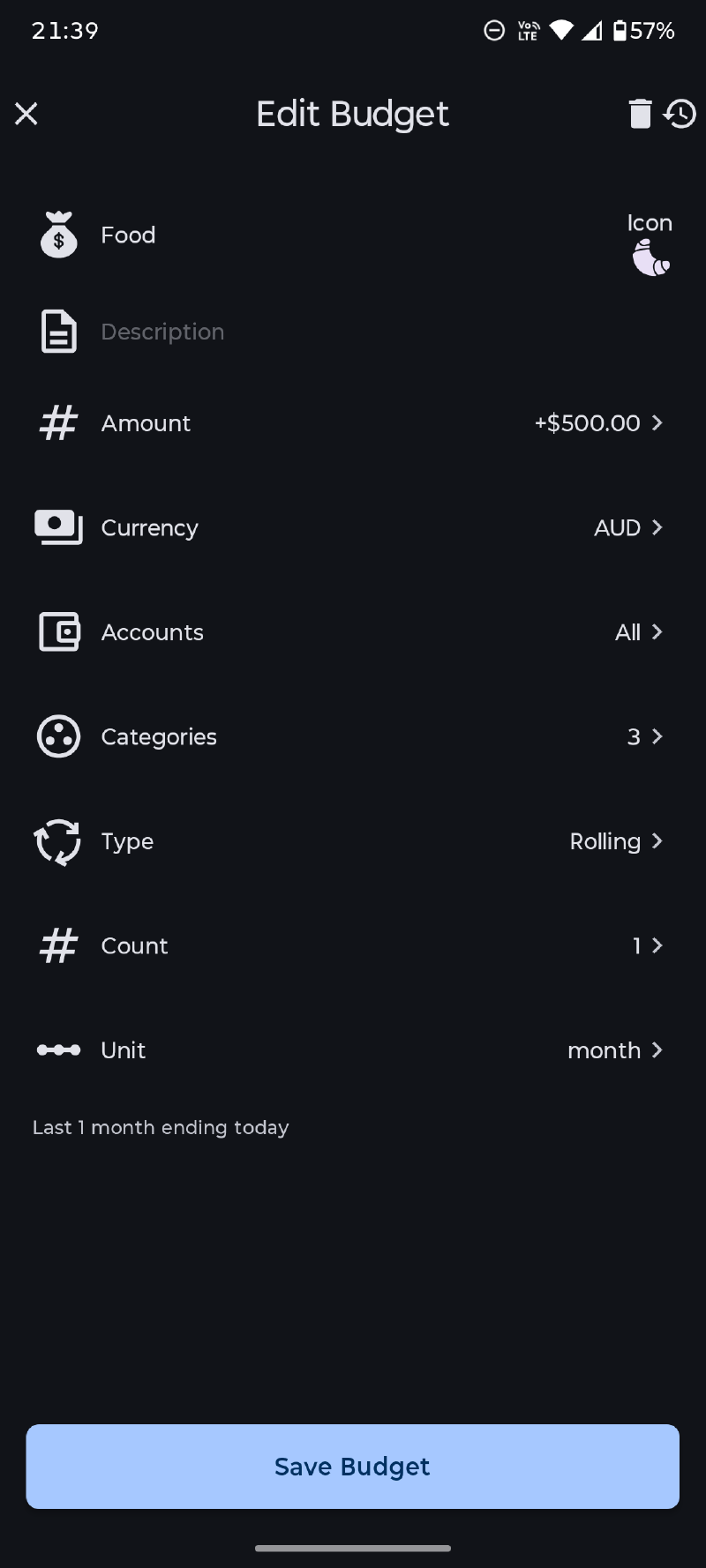
Use a rolling budget when the period should always end today and look back by a chosen duration. Available durations are days, weeks, fortnights, months, quarters, years, and fiscal years.
A rolling one-month budget is not a calendar-month budget. On 15 August it covers the preceding month through 15 August; on 16 August it moves forward by one day. This makes it useful for ongoing limits such as “keep dining out below $300 in the last 30 days” or “stay within $1,000 over the last three months.”
Anchored#
Use an anchored budget for repeating cycles that begin on a date you choose. The start date anchors every future period, and the period repeats at the selected frequency: days, weeks, fortnights, months, quarters, years, or fiscal years.
Anchored budgets are appropriate for salary cycles, billing cycles, or any recurring period that does not necessarily line up with the calendar. For example, an anchored monthly budget starting on the 10th runs from the 10th of one month through the 9th of the next.
For a fiscal-year budget, choose an anchor date that matches the start of your financial year. Budgie treats a fiscal year as a yearly period starting from that anchor; it does not infer a regional financial-year start automatically.
Choosing a type#
| Need | Recommended budget type |
|---|---|
| A temporary spend cap with fixed dates | Fixed range |
| A continuously updated “last N days/months” limit | Rolling |
| A repeating payday, subscription, or billing cycle | Anchored |
After creating a budget, review its progress and history regularly. Consistent account, category, and tag assignment will make its totals more reliable.
Periods and rollover#
Budgie evaluates each budget against its configured window. A fixed-range budget remains tied to its original dates, a rolling budget moves with the current day, and an anchored budget advances through repeating periods.
Unused allowance or overspending does not become a separate transaction. When comparing one period with the next, use the budget history and underlying transactions rather than changing an opening balance or adding an artificial adjustment.
Editing a live budget#
Changing dates, filters, currency, or the limit changes which transactions qualify and how progress is presented. Review the current and previous periods after an edit, particularly when changing an anchor date or account filter.