Budgie provides database backups for recovery and exports for using transaction data elsewhere. They serve different purposes: a backup preserves Budgie data for a later restore, while an export produces files intended for spreadsheets or other software.
Create a backup#
Open Backup & Restore or Database Tools from the menu. You can create a Budgie ZIP backup immediately or configure automatic backups.
Local and cloud backups are configured independently, so you can use either destination or both:
- Local backup uses a folder on your device or removable storage.
- Cloud backup uses a folder exposed by Android’s document picker, such as Google Drive or another supported storage provider.
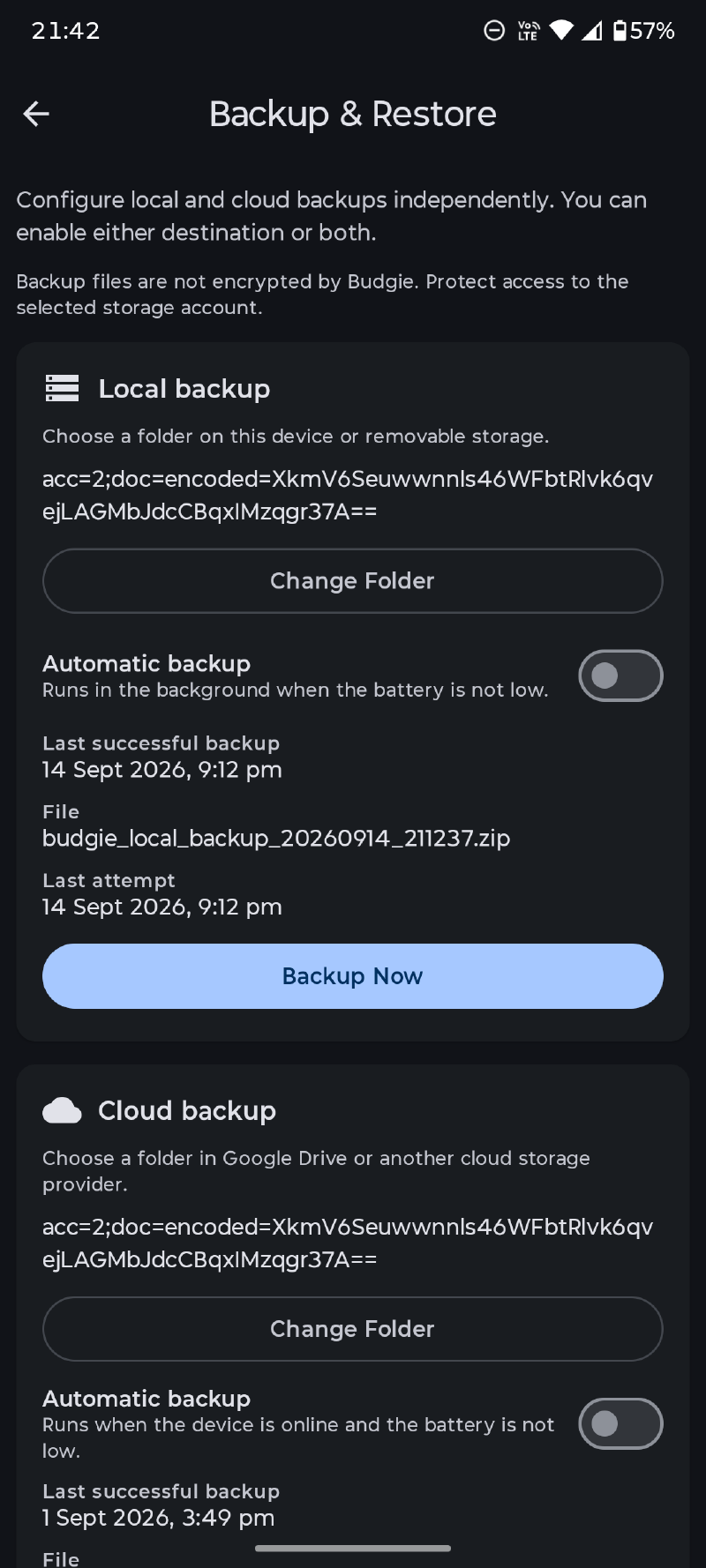
Automatic backups can run daily or weekly. Choose how many backups to keep; after a successful backup, Budgie removes older Budgie backup files from that selected folder according to the retention setting. Background backups run when the battery is not low, and cloud backups also require the device to be online.
Budgie does not encrypt its backup files. Protect access to the device, removable storage, or cloud account where you save them.
Restore a backup#
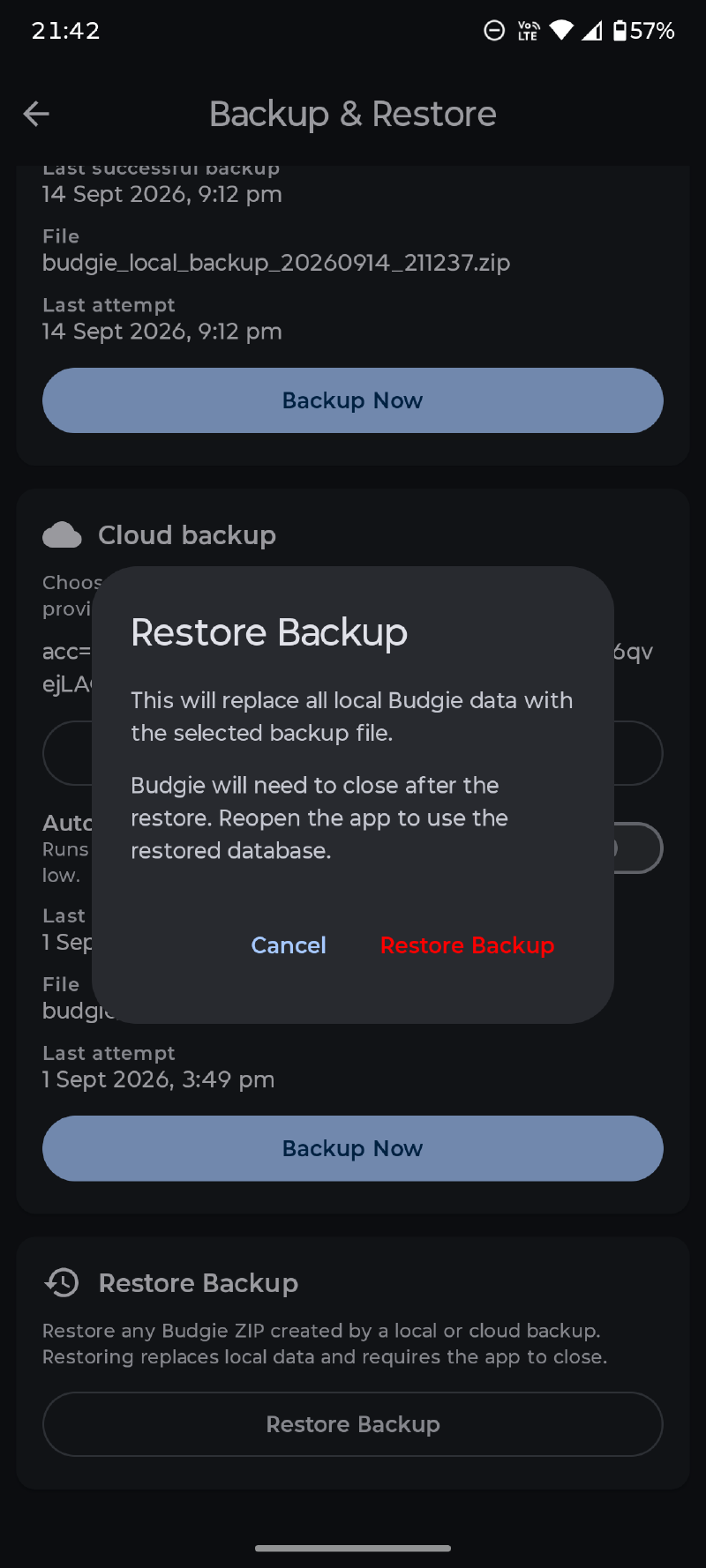
Select Restore from Backup File and choose a Budgie ZIP created by either a local or cloud backup.
Restoring replaces all local Budgie data with the contents of the selected backup. It is not a merge. Budgie must close when the restore completes; reopen it to load the restored database cleanly.
Before restoring:
- Create a current backup if you may need the existing database again.
- Confirm that you selected the intended Budgie ZIP.
- Allow the restore to finish and the app to close.
- Reopen Budgie and check accounts, recent transactions, budgets, and schedules.
Export transactions#
Open Database Tools, choose Export Data, and select CSV, JSON, or QIF. You can choose the destination folder and configure relevant file options, including the decimal separator, delimiter, whether the first line contains headers, and whether accounts are merged into one file or written separately.
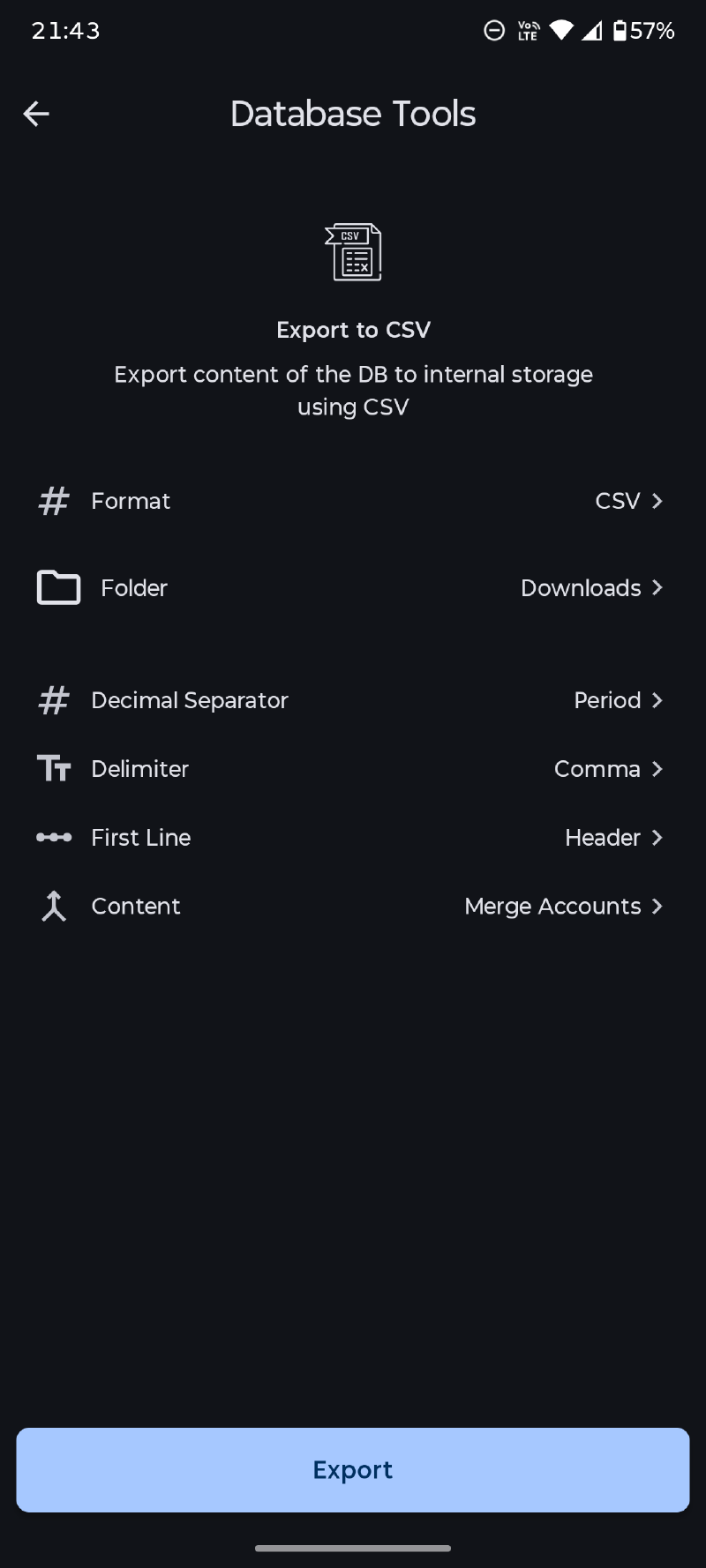
Exports are useful for spreadsheet analysis or transferring supported data to another system, but they are not a complete Budgie restore file. Keep a Budgie ZIP backup as well if you need disaster recovery.
For importing transactions and supported third-party data, see Importing Data.